Mobile App to Manage and Transfer Warehouse Stock : Stock App
StockMobile puts live inventory control and one-tap stock transfers in your team's pocket — no clipboards, no manual ERP entry, no delays.
Managing warehouse stock still runs on clipboards and manual ERP updates at most operations. Items get miscounted, transfers get recorded hours late, and nobody has a clear picture of what is actually on the shelf right now. StockMobile fixes that by giving your warehouse team a single app on their phone that connects directly to your ERPNext inventory — scanning, viewing stock, and submitting transfers in real time.
Instant Barcode and QR Scanning
Your team scans any item directly from the warehouse floor using the phone's camera. No dedicated hardware, no separate scanner guns. The app looks up the item immediately and adds it to the active transfer list, ready to move.
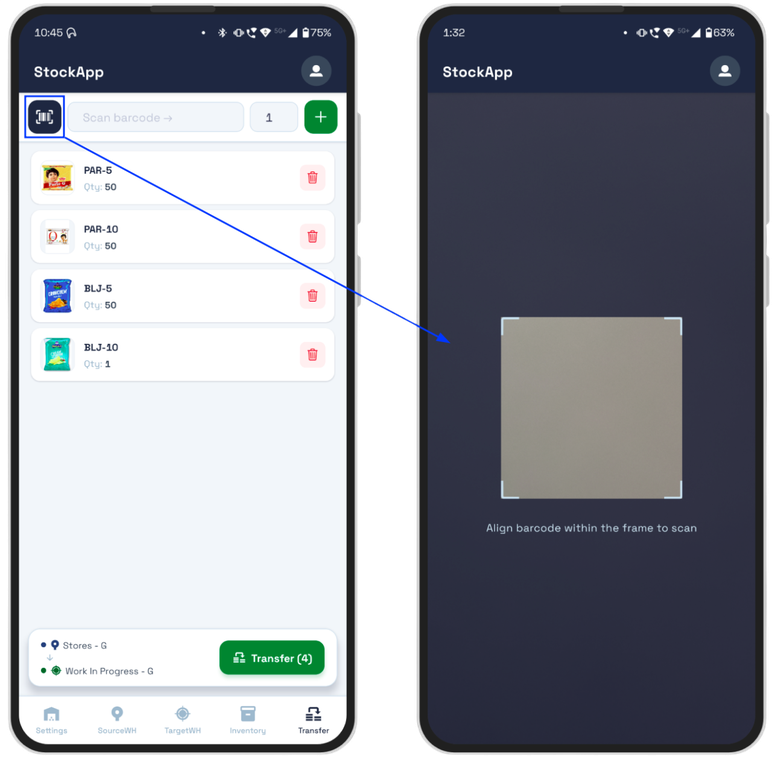
Scan any barcode or QR code using the phone camera — no additional hardware required.
Source and Target Stock Views
Before moving anything, your team can see exactly how much stock is sitting in both the source and destination warehouse right now. Two dedicated views update from your live ERPNext data, so decisions are made on current numbers, not yesterday's spreadsheet.
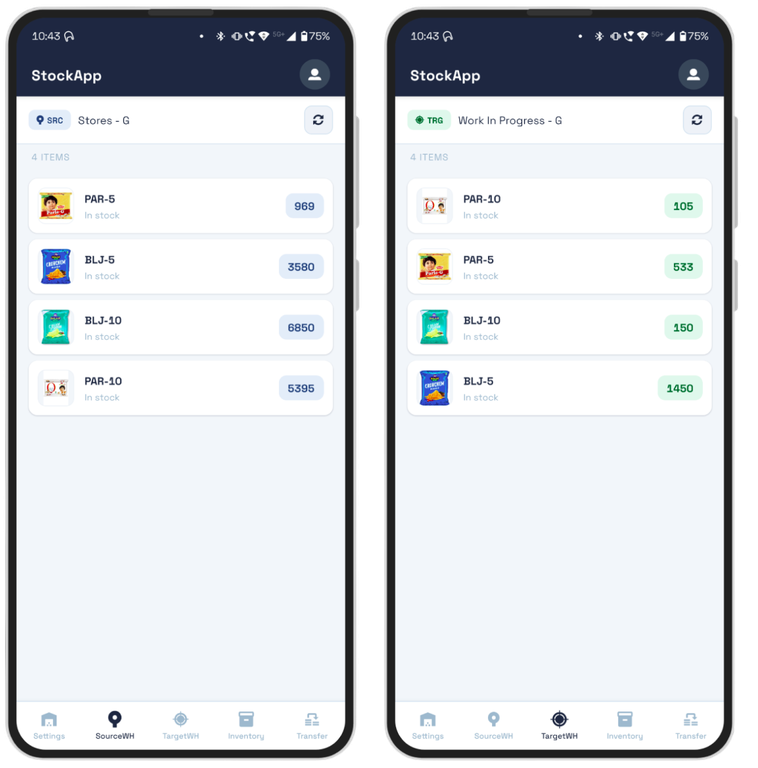
View current stock levels for both warehouses before initiating any transfer.
Full Inventory Browser
Need to check stock in a warehouse that is not part of the active transfer? The inventory browser lets any team member look up stock levels across your entire operation from their phone — useful for customer inquiries, receiving checks, and cycle counts.
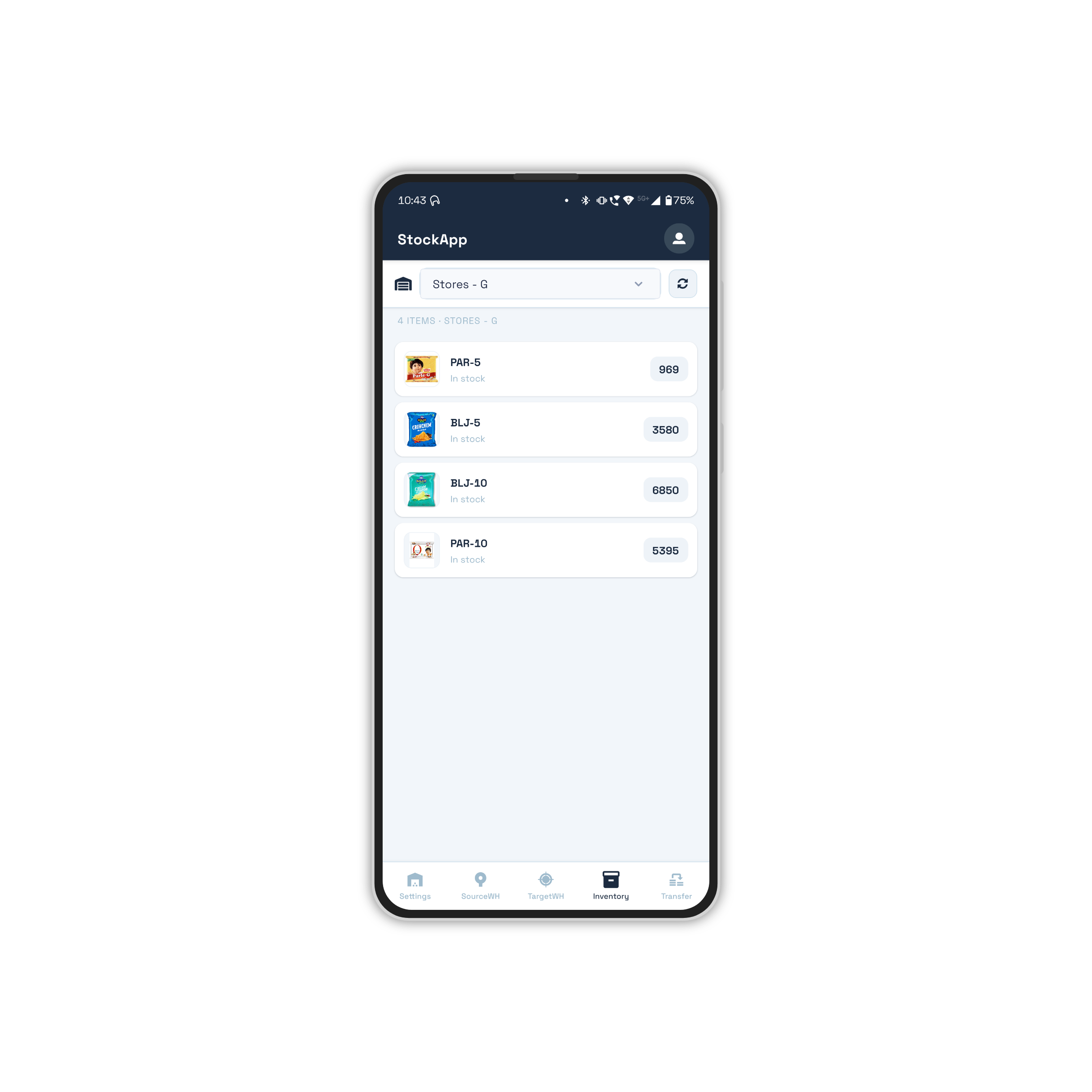
Browse complete stock levels for any warehouse, on demand, from any phone.
One-Tap Material Transfer to ERPNext
Scan the items you want to move, set the quantities, and submit. StockMobile creates a real Stock Entry record directly in ERPNext — no double entry, no lag, no risk of it being forgotten. The record appears in your ERP the moment the team member taps submit.
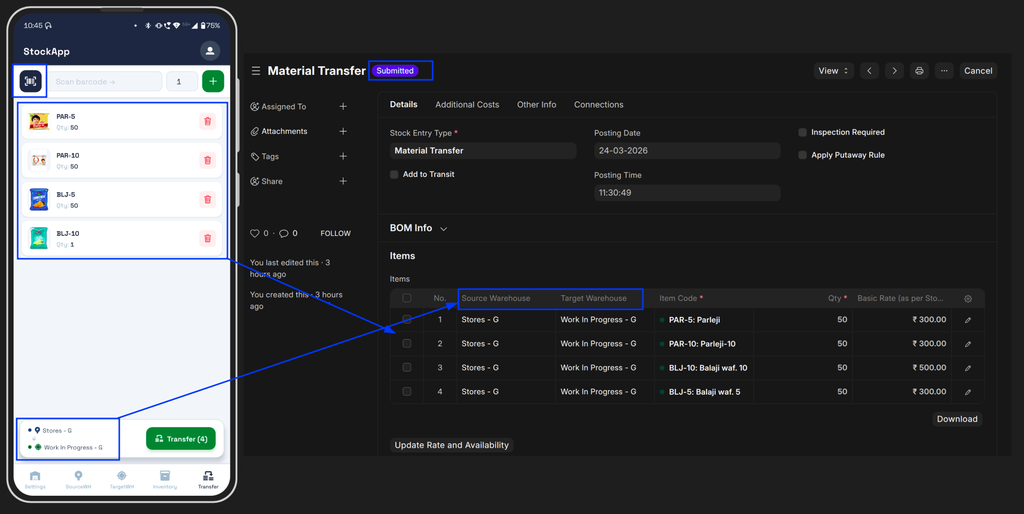
Build a transfer list by scanning, then submit once — a full Stock Entry lands in ERPNext automatically.
Persistent Warehouse Settings
Each team member sets their source and target warehouse once. The app remembers the selection across shifts and app restarts, so there is no reconfiguration at the start of each day. Less setup means fewer mistakes.
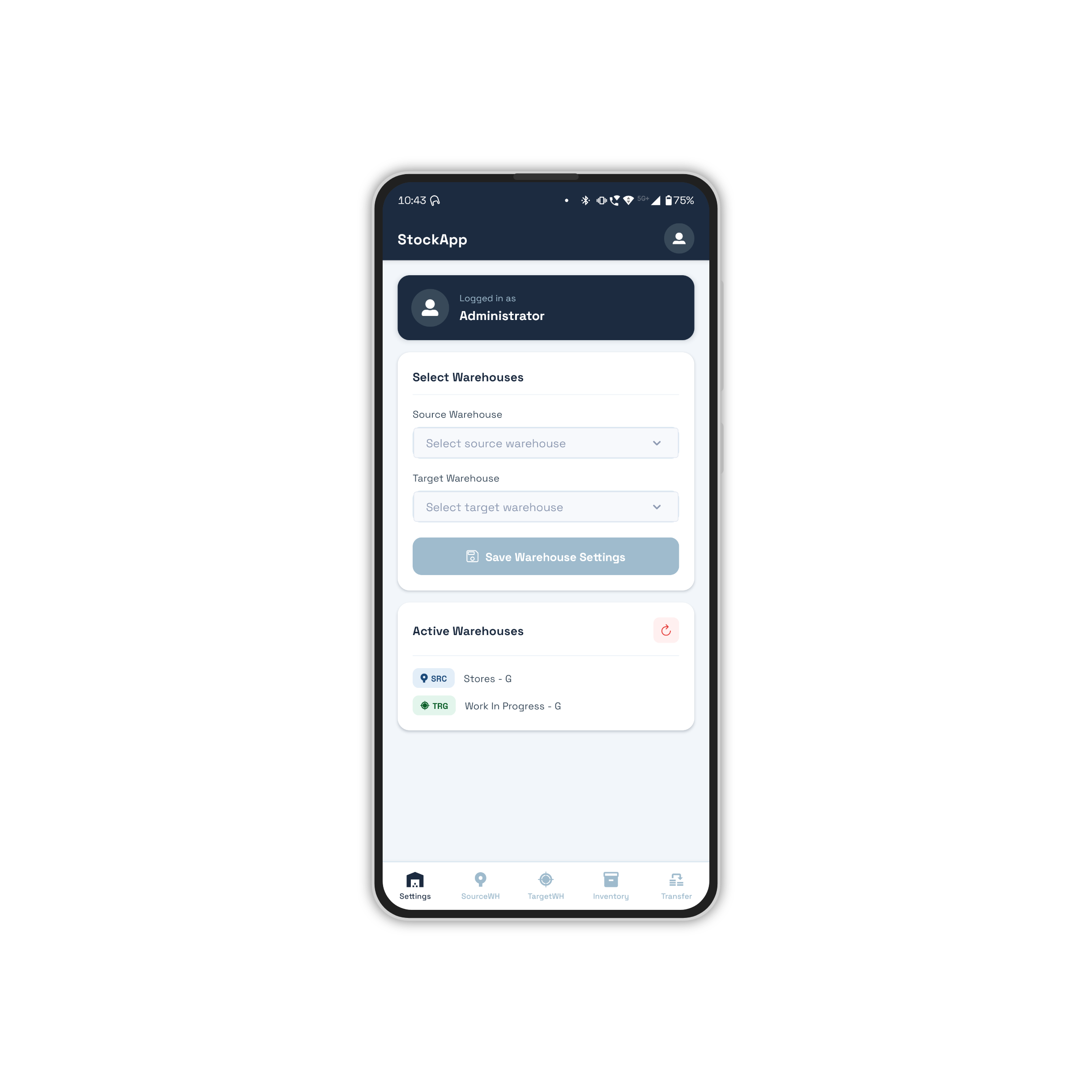
Warehouse preferences are saved per device — set once and carried forward every shift.
Item Images for Visual Confirmation
Every item in the transfer list and inventory view shows its product image pulled directly from ERPNext. Your team visually confirms the right item before committing a transfer, reducing the most common source of warehouse errors: picking the wrong SKU.
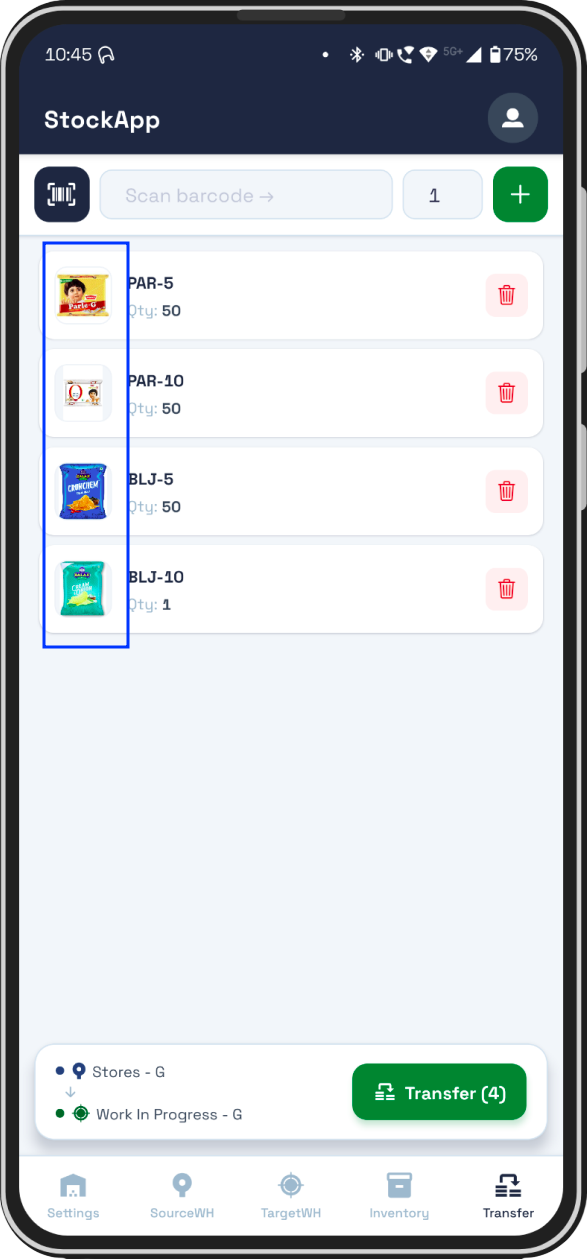
Product images from ERPNext display alongside item details for visual confirmation before transfer.
Why Operations Teams Choose StockMobile
- No paper, no manual ERP data entry — transfers go straight to the record
- No need to carry extra hardware to scan code
- Runs on any iPhone or Android device your team already carries
- Every transfer creates a complete audit trail in ERPNext automatically
- Reduces picking errors through live stock data and visual item confirmation
- Gets a team member from login to first completed transfer in under five minutes
- Easy to use transfer flow scan->qnty.->transfer
If your warehouse team is still reconciling paper transfer sheets at the end of a shift, StockMobile is worth a conversation. Get in touch to see a live demo against your ERPNext instance.

No comments yet. Login to start a new discussion Start a new discussion