Inbox to Invoice
A daily spreadsheet lands in an inbox. Nobody opens it — and a matched, submitted, customer-emailed invoice shows up in ERPNext anyway.
Saga 100 Connector
An app that reads sales files from Sage 100 emails and creates matching invoices in ERPNext, on its own.
If your business uses Sage 100, you're probably already emailing sales data out of it as a CSV or Excel file. Normally, someone has to open that email, download the file, and type the details into ERPNext by hand — one order at a time.
Saga 100 Connector is a small app we built to take care of that step. It watches an inbox, reads the file that comes in, and creates the matching Sales Invoice in ERPNext automatically — no downloading, no retyping.
The five steps a Sage 100 file goes through inside ERPNext. There's no schedule to wait for — a new email is what starts it.
1. It starts with an email
A settings page called Saga Settings holds a few basic details: which inbox to watch, which group of customers these sheets belong to, which warehouse to invoice from, and who to notify if something needs attention. That's the only setup needed.
After that, the app just watches. Every time a new email comes in, it checks whether it arrived at the right address. If it did, it saves each file attached to that email as a new import record, ready to be read. It also keeps track of what it has already picked up, so the same email never gets imported twice.
2. Reading the sales file
The attached file can be a CSV, XLS, or XLSX — the app can read any of the three. It looks at the column headings and matches them to the right fields, even when the heading is a short form, like "InvDate" instead of "Invoice Date". The sheet never needs to be reformatted first.
One file usually contains many orders. The app groups the rows by purchase order number, so a sheet with forty orders in it becomes forty separate orders, each one tracked and invoiced on its own. It also cleans up small quirks along the way, like Excel turning an order number into "48213.0".
3. Finding the right customer
A customer name in the sheet doesn't always match the customer name in ERPNext exactly. So the app compares the two and picks the closest match, looking only within the group of customers it's set up to handle.
If it isn't confident about the match, it won't guess. That order is marked Fail instead, with a note explaining why, so someone can check it by hand rather than risk billing the wrong customer. Delivery addresses are handled the same careful way — matched against an address the customer already has on file, never invented.
4. Creating the invoice
Before turning an order into an invoice, the app runs a few checks:
- Delivery note numbers
- If the order number in the sheet is actually a delivery note number, it's skipped — that wasn't a sale that needs invoicing.
- Duplicate invoices
- If the invoice number already exists in ERPNext, or in an earlier import, it's not created again.
- Correct pricing
- Prices are taken directly from the sheet, along with the right warehouse, batch numbers, and shipping address.
- One error doesn't stop the rest
- Each order is processed on its own, so if one fails, the other orders in the same file still go through.
Once an order passes these checks, the app fills in taxes, totals, and customer details the same way a person would when creating a Sales Invoice by hand, then submits it.
5. Keeping track of every order
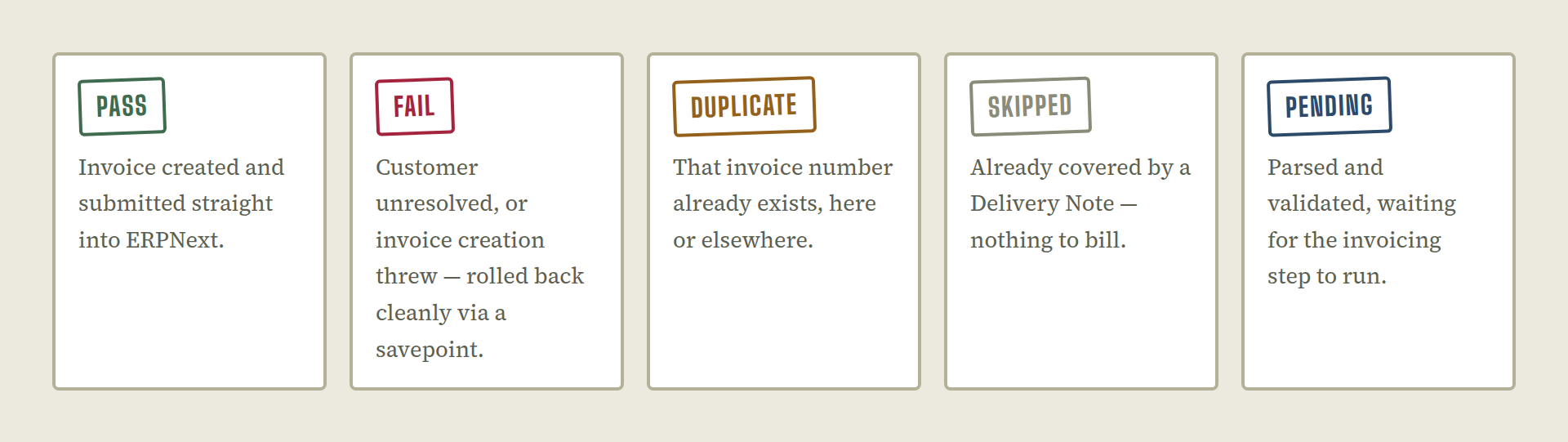
Every order ends up in one of five states:
- Pending: Read from the sheet, not processed yet.
- Pass: Invoiced — links straight to the Sales Invoice.
- Fail: Couldn't be processed — links to a note explaining why.
- Skipped: Was a delivery note, not an order to invoice.
- Duplicate: This invoice already exists — links to the existing one.
If anything is marked Fail, an email goes out to the sales team listing what needs a look, without holding up the orders that already went through fine. There's also a "Retry Failed Invoices" button that tries those rows again later.
Letting the customer know
Once an invoice is created and submitted, the app emails a copy of it to the customer automatically. It also marks the invoice to show whether that email actually went out, so the team can check at a glance instead of searching through the mail history.
Every invoice also keeps a link back to the exact import it came from — the email and the sheet row — so if a customer says they never received an invoice, it only takes one click to trace it.
Reports for what needs attention
- Failed Sales Import Log Report
- Lists every order that failed, most recent first, with a link to the reason — a quick list of what needs a look each day.
- Customer Email Status Report
- Lists invoices created this way, and shows whether the confirmation email was sent to each customer.
What this app does, in short
This app doesn't change anything in Sage 100. It simply reads the file that's already being emailed out and takes care of the rest inside ERPNext — reading the sheet, matching the customer, creating and submitting the invoice, and letting the team know if anything needs a closer look.
It's a small piece of plumbing, but it removes a repetitive, error-prone task from someone's day.
No comments yet. Login to start a new discussion Start a new discussion